Manage spool inventory
Filament Manager
Filament Manager for 3D Printer Spools
Track spool inventory, remaining weight, storage locations, and printer slots in one localy hosted filament manager. SpoolEase helps manage any filament brand, monitor printers, and avoid running out of filament mid-print, powered by NFC/RFID.
Find every spool
Update printer slots
Track available weight
Monitor multiple printers
Filament inventory
One place for spool inventory, weight, storage, and printer slots
A useful filament manager needs to connect the records in your inventory with what is actually happening at the printer, and it needs to integrate seamlessly into your workflow. SpoolEase keeps spool details, remaining weight, storage locations, and slot information together so the inventory stays useful during real printing workflows, and right from inside your slicer software. Read what to look for in a filament manager.

Inventory and printer workflow
Review spools, printer status, AMS and external slots, staging actions, storage updates, and common setup tasks.

Remaining weight tracking
Combine direct spool weighing with print-consumption updates so available filament stays updated between measurement points.
Inventory
Inventory table
Manage all filament in one inventory
Keep the information that matters for each spool: material, brand, color, slicer filament, remaining weight, tag info, storage location, and printer-related settings. The inventory is built for finding and updating spools as your collection grows.
- Filter and sort the inventory when you need a specific material, color, brand, or available weight.
- Track values that matter during printing, including net weight and pressure advance settings.
- Use stock records when you buy several identical unused spools and split them when one starts being used.
NFC and printer slots
Console workflow video
Hands free slots configuration
Tagged spools can be scanned before loading them into printer slots. Prinnter slot information is configured from the inventory instead of entered by hand.
- Slot information can include material, color, K, spool ID, remaining weight.
- Reduce the repetitive slot setup that normally happens when switching materials.
- Use NFC/RFID tags for quick identification.
- After using this for some time, you won't understand how you managed before.
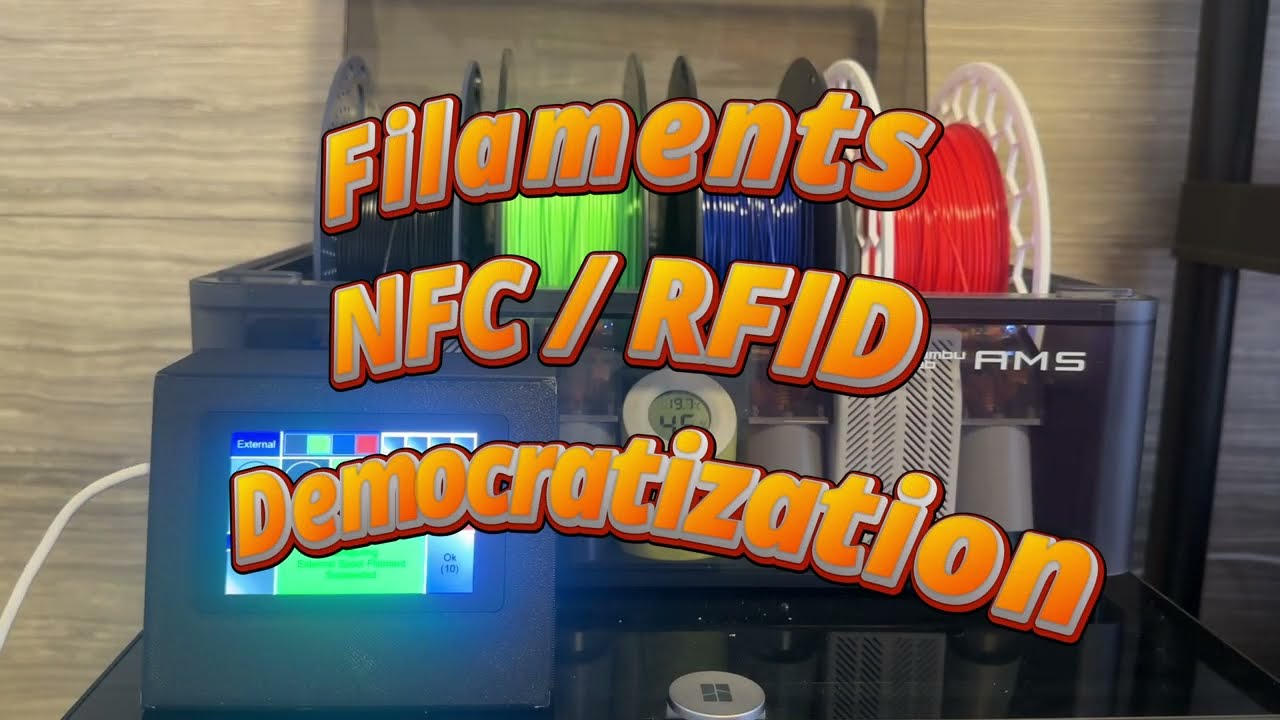
Dual Method Weight Tracking
Scale reading on Console
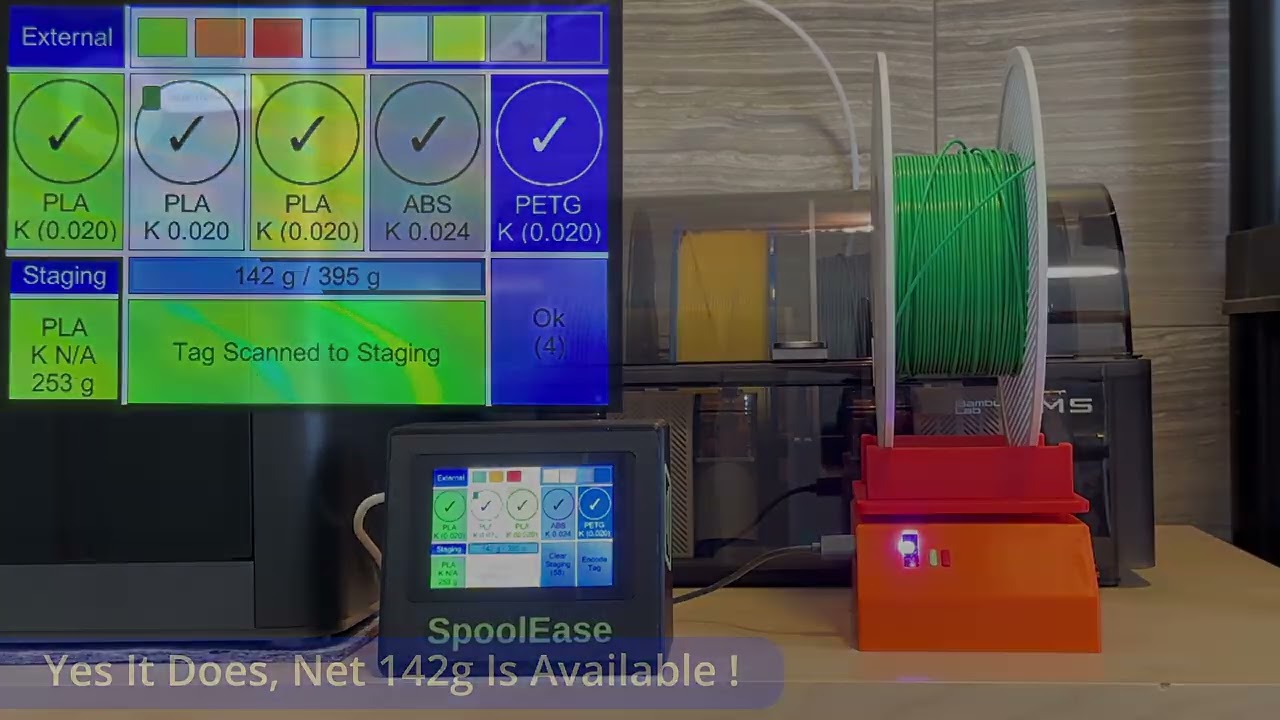
Scale + print tracking for accurate filament availability
Combine direct weighing with print-usage tracking. Direct measurements give the best baseline, while print tracking keeps remaining filament weight updated when a spool is loaded and printing.
- Weigh a spool during linking, when it is removed from AMS, or right before using it in the printer.
- Show net available weight by automatically reducing empty spool weight from the measured weight during printing.
- Keep inventory weight values updated instead of relying only on memory or label estimates.
- This dual-method weighing approach provides both real-time filament availability tracking and accurate information that print tracking alone cannot guarantee.
- Never run out of material in the middle of a print !
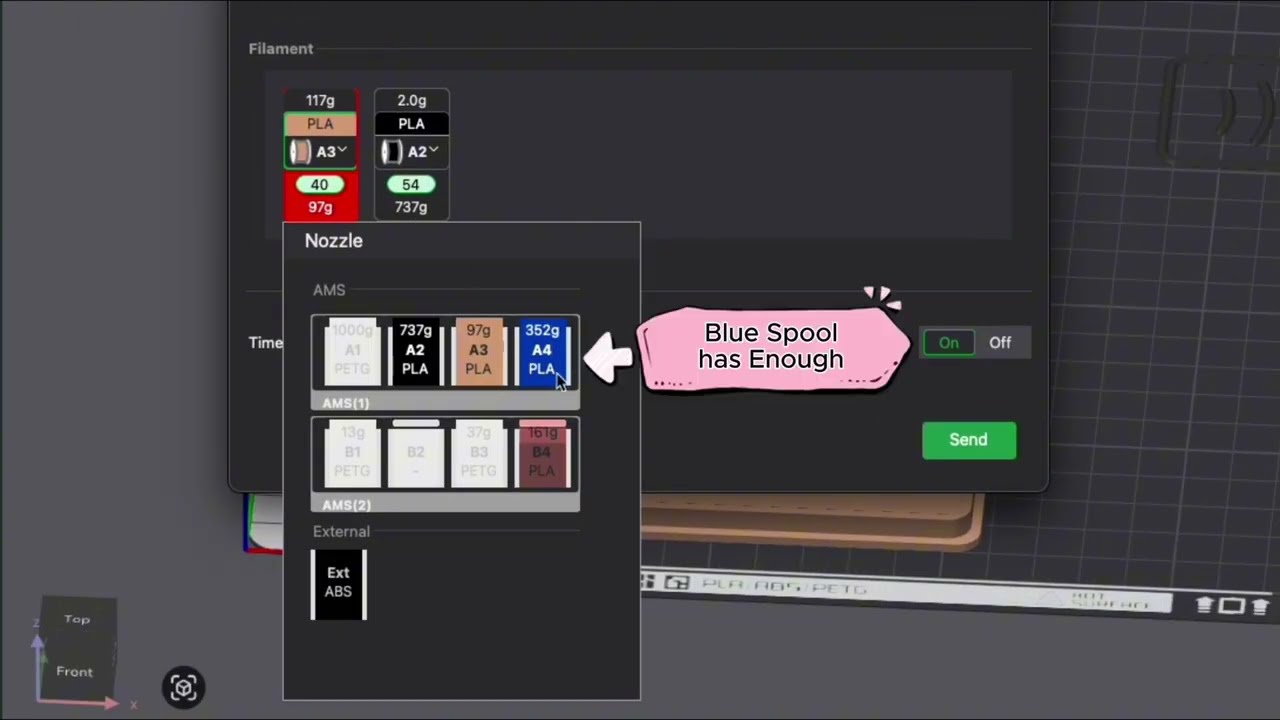
Custom Bambu Studio
Print filament check
Use filament inventory data inside the slicer
The optional custom Bambu Studio build brings filament inventory context into the normal slicer workflow.
- Compare required print filament with available spool filament. Warn if there may not be enough.
- Show SpoolEase spool ID and remaining weight where relevant inside Bambu Studio.
- Use the full SpoolEase web application from inside Bambu Studio.
- Automatically back up the full SpoolEase store.
- Automatically sync Bambu Studio custom filaments to SpoolEase.
Monitor Printers
Printer overview
Monitor multiple printers and spool status together
The Printers page shows configured printers together with the filament information from the inventory: active print progress, AMS units, external spool slots, temperature, humidity, and print controls.
- Watch print progress, remaining time, current layer, and print state when the printer reports them.
- View AMS and external spool slots with the information SpoolEase can match from inventory.
- Use the page as a quick status board for several printers when more than one is configured.
- Works in developer mode as replacement for Handy app.
Storage System
Labeled storage rack
Know where your spools are stored
Track assigned and actual locations to spools. Locations can be structured around the way you store filament, and optional location tags can simplify location update workflow.
- Model racks, shelves, positions, and containers in a way that matches your storage setup.
- Separate assigned location from actual location so temporary moves are not lost.
- Use location tags to help place spools back into storage after scanning, unloading, or weighing.
- Quickly locate your spools even when stored inside containers.
Dashboard
Dashboard overview
See what is low, missing, or hard to notice
The Dashboard summarizes the filament inventory with charts for weight, spool counts, materials, brands, colors and more. Chart values can open the matching inventory records.
- Quickly view which colors or materials you lack or running out of.
- Build your own charts automatically from inventory fields or custom filter groups.
- Click chart values to inspect the records behind the number.
- Import, export, resize, and rearrange dashboard charts as your setup changes.
Virtual labels
Virtual spool label
Quick access to spool details from the tag
After a spool tag is encoded, scanning it with a mobile phone can open a virtual label with the stored spool details.
- Use virtual labels for quick checks away from the Console.
- Avoid the hassle of reading those tiny spool printed lables.
- Reuse spools and don't get confused by misleading printed labels.
How it works
A practical loop for filament handling
1
Add Spools
Add or import spool records information. Bambu Lab tags supported.
2
Tag & Weigh
Link spools to NFC tags, weigh them for an accurate baseline, and optionally encode a virtual label to view on mobile.
3
Scan & Load
Scan and load to quickly configure AMS and external slots. Bambu Lab spools may be scanned directly by AMS.
4
Update Storage
Unload, weigh again for an accurate baseline, then quickly set the storage location to find it later.
5
Find & Monitor
Use the web UI to search inventory, monitor printers and prints, and review dashboard to see what is about to run out.
Compatibility today
Check the docsPrinter integration currently focuses on Bambu Lab printers.
Inventory, tags, weighing, dashboards, and storage workflows are broader than a single printer brand. The printer-facing integration available today is for Bambu Lab printers, and some slot-configuration workflows depend on printer firmware mode and support.
Ready to build or update?
Install firmware from the browser, then continue with the docs.
The install page has separate firmware options for Console and Scale, including new install and upgrade flows.